
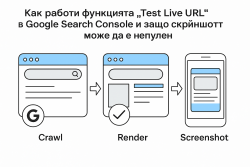
The „Test Live URL“ process – crawling, rendering and screenshot generation
When using the URL Inspection tool in Google Search Console and selecting „Test Live URL“, Google performs an immediate crawl and render of the specified page.
In practice, Googlebot accesses the URL in real time, fetches the HTML code and all permitted resources (CSS, JavaScript, images), and then renders the page using a headless browser (Google Web Rendering Service). This process is analogous to the way Google crawls and indexes pages, with the difference that the results are displayed immediately in Search Console for diagnostic purposes support.google.
During the test, any redirects are followed (if the URL redirects elsewhere), after which the final resource is analysed support.google. Googlebot prioritises the mobile version of the page in line with mobile-first indexing – the test details, including the screenshot, are taken from the mobile version of the page support.google. In other words, Googlebot will most often identify itself as a mobile browser (Googlebot Smartphone) and render the page in a mobile viewport.
After successful retrieval and rendering, Search Console displays:
- A status summary (whether the page can be accessed and indexed);
- A screenshot of the rendered page – an image of how Googlebot sees the page visually support.google;
- Rendered HTML code – the DOM structure after JavaScript execution (available in the “View tested page” section);
- HTTP headers, console messages and a list of loaded resources – useful for debugging (for example, blocked files or script execution errors).
Why does the screenshot sometimes show only part of the page?
One of the tool’s features is the screenshot of the rendered page, which allows site owners to see the page as Googlebot “sees” it visually. Sometimes this screenshot appears incomplete – parts of the content, sections of the page, images or interactive elements may be missing. There are several reasons why the screenshot may show only the top part or partial content:- Rendering/screenshot limitation: Google may not render the entire page from top to bottom, especially if the page is very long. The screenshot represents the rendered content, but it does not always cover the full length of the page – sometimes Google captures only what is visible in the viewport (above the fold). As a result, even when rendering status is reported as “Complete”, the image may still look as though the page has been cut in half. This is expected behaviour: Googlebot does not simulate infinite scrolling, but rather takes a „snapshot“ of the visible content at a given moment.
- Lazy loading of content: Many websites use lazy loading for images or sections that load only on scroll or in response to specific events. Googlebot, however, does not interact with the page like a real user – it does not actively click or scroll. If content (for example, images or text blocks) loads only when the user scrolls down to it, there is a risk that Google will not see it during rendering. Google recommends lazy-loading implementations that do not depend on user actions, but instead rely on mechanisms such as the IntersectionObserver API or built-in browser lazy loading, so that content loads as soon as it becomes visible in the current viewport developers.google. Otherwise, elements further down the page may be missing from the screenshot (and also from the rendered HTML).
-
Blocked resources (CSS/JS): If important resources such as CSS files or JavaScript scripts are blocked for Googlebot (for example, via robots.txt) or inaccessible for other reasons, Google will not be able to load them during rendering. This may result in the page being displayed incorrectly – for example, missing styles (white text on a white background leading to “invisible” text) or a failed script that was supposed to inject content.
The official documentation states that differences between the live page and the screenshot are most often caused by resources blocked to Googlebot. In such cases, Search Console usually marks the result as “Partial” in the older Fetch as Google tool, accompanied by a list of blocked resources. The most common causes here are blocked .css or .js files, without which the page cannot be rendered properly. (For example, in one case, a site had a Disallow: /*?* rule in robots.txt, and CSS files with URL parameters were blocked, which led to missing text in the screenshot webmasters.stackexchange.) - JavaScript execution errors or delays: If the page relies on JavaScript to display certain content, it is possible that the scripts do not fully execute during the test. Googlebot waits only a limited amount of time for rendering – it is known that Test Live URL and other Google testing tools stop rendering earlier because the user is waiting for a result. This means that if a script loads data with a significant delay or throws an error entirely (for example, a CORS error when attempting to request an external resource that is not allowed by the relevant sharing policies), the respective content will not appear. A similar issue may arise if there are JavaScript errors in the console – for example, incompatibility, a missing dependency or other runtime errors may stop the script from executing. As a result, part of the text or functionality (generated via JS) will not be visible to Google during rendering.
- External services or adverts: The page may load resources from third parties (analytics scripts, adverts, and so on). If an external service does not respond in time, Googlebot may finish rendering before it loads. For example, it is known that an unavailable analytics.js (Google Analytics) or another external script can sometimes lead to a “partial” status – in such cases, the page content itself may still be available, but the tool reports that not all resources were loaded.