
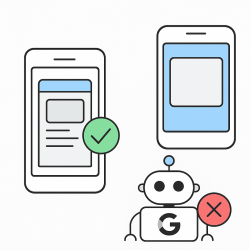
 This raises the question: if the screenshot is incomplete, does that mean Google has not indexed the entire content either?
This raises the question: if the screenshot is incomplete, does that mean Google has not indexed the entire content either? The answer depends on whether the content was accessible to Googlebot during rendering:
- If the content missing from the screenshot is actually present in the source HTML or was successfully loaded via JavaScript, then Google has most likely seen and indexed it. In such cases, the mismatch is more of a visual artefact. A Google representative (Martin Splitt from the Search Relations team) explains that if a given piece of content is visible in the rendered HTML code but does not appear in the screenshot (which is rare), this in itself is not an indexing issue. Google is concerned with the actual text/content in the DOM, not with its visual representation.
- If, however, the content is entirely missing from the rendered version (DOM) of the page, then Google cannot index it. A page whose HTML is accessible but whose key content fails to load (for example, because of a blocked script or the need for user interaction) may be indexed “without content”. In the Pages report (formerly Coverage) in Search Console, this appears as the status “Indexed, but missing content”. Such a URL may still enter the index if there are enough internal or external links pointing to it, but it will not perform well in search results, because Google is unable to extract relevant information from the page. In such cases, the page will have a very low or zero ranking for searches related to the hidden content – in practice, it is “empty” from the search engine’s perspective.
For example, if images on the page are lazy-loaded and Google has not loaded them, those images will not be indexed in Google Images, nor will they contribute to the understanding of the page. If a block of text is generated with JavaScript, but the script does not execute during rendering, that text will not be included in the index (and the page therefore will not rank for keywords related to it).
In short: rendering issues can negatively affect SEO, but an incomplete screenshot in itself is not a sign of a penalty or a direct negative ranking factor – it is a symptom suggesting that Google may not be seeing everything.
Google recommends using the “HTML” section (rendered code) in URL Inspection specifically to confirm whether the content is present. The screenshot is useful for an initial visual check of page elements, but for indexing purposes what matters more is what is present in the DOM. As mentioned, if the content is present in the rendered DOM, even if it is not visible in the image, its indexing should not be affected. If, however, the content is missing there, it should be assumed that Google has not indexed it, and this can directly damage the page’s rankings for the relevant topics/keywords.
Common causes of partial or incorrect rendering
As summarised above, the main factors that can lead to partial page loading during testing (and during actual crawling) are:
-
Blocked resources: Check the robots.txt file – blocking CSS and JavaScript files is a common cause of incomplete rendering. Make sure there are no Disallow rules for the paths to key resources. Some resources may also be blocked by hosting settings or a firewall. For example, if the site uses a firewall/CDN, make sure it does not block Googlebot or specific IP ranges. If there is an issue, Search Console will show a list of resources and their status (for example, “Blocked by robots.txt”). Remove the restrictions and test again.
-
Lazy loading / dynamic loading: If content is loaded in parts on scroll or through deferred requests, review the implementation. Make sure important elements load automatically during rendering, without requiring scrolling or user actions. Use modern APIs such as IntersectionObserver for images, or provide noscript versions as a fallback for search engines. Test with the Mobile-Friendly Test or Rich Results Test, which, like URL Inspection, show rendered content. If important sections are missing, consider alternative approaches – for example, preloading critical content in the initial HTML or using server-side rendering for SPA applications.
-
JavaScript errors: Open the Page resources / Console section in “View tested page” to see whether there are JavaScript errors. Errors such as uncaught exceptions, CORS (Cross-Origin Resource Sharing) blocks on requests to an external domain, or missing dependencies will prevent scripts from completing their tasks. If you see error messages, resolve them and test again. One common case is a CORS error – for example, your page tries to load a resource from an external domain, but that domain does not allow access (because it lacks the correct CORS headers). The solution is to configure the external resource server to allow Googlebot or requests from your domain, or to implement a fallback mechanism. Also check for timing issues – if your script waits for a user event or delays execution, Googlebot is unlikely to wait. Critical operations should happen quickly during page load.
- Slow loading / timeout: If your server is slow or the page makes multiple sequential requests, Googlebot may stop the rendering attempt before everything has loaded. Google will not wait indefinitely – the testing tools have a defined rendering timeout. Make sure the page loads quickly and that the initial server response is optimised. Reduce unnecessary external scripts, bundle resources and use caching. If the issue lies with a third party (for example, a slow advertising script), consider loading it asynchronously or with lower priority. The goal is for the main content to appear immediately, even if other elements continue loading afterwards.
What should be done in such a case?
When an SEO specialist or administrator notices that Google is not rendering a page fully (in the live test or even in the indexed version), it is important to take a methodical approach:
-
Analyse the rendered HTML: First, open URL Inspection -> View tested page -> HTML. Search the code for the texts or elements missing from the screenshot. If you find them in the HTML, that is a good sign – it means Googlebot received them. The issue may be related to visual rendering (CSS) or limitations of the tool. If, however, the expected content is also missing from the HTML code, then there is a rendering problem (Google genuinely cannot see that content).
-
Check for blocked resources: In View tested page -> Page resources, you will see a list of the requests Googlebot made and their status (200, 404, blocked, etc.). Pay attention to whether any CSS or JS files are marked as blocked or disallowed. If so, review robots.txt and your server settings. Allow Google access to all critical resources (for example, remove Disallow rules for /wp-content/ if you use WordPress, and so on). After making changes, run a new “Test Live URL” to see whether they now load. Blocked resources are relatively easy to fix – usually by correcting rules or firewall settings, after which Googlebot will be able to render the page properly.
-
Diagnose dynamic content: If the issue affects lazy-loaded elements, assess which of them are important for SEO. For images, make sure you use the loading="lazy" attribute (a built-in mechanism) or IntersectionObserver, rather than an older solution dependent on onscroll events. For text/product lists that load on scroll, consider pagination or a “Show more” button, as Google may not scroll. You can test different approaches and immediately use “Test Live URL” to see whether the content now appears in the rendered HTML. If it is critical content (for example, a product description), it is best for it to be fully present in the initial HTML or injected via JavaScript without requiring user actions.
-
Fix JavaScript errors: In the console of the tested page (View tested page -> Console), look for error messages. If there are CORS errors, work with a developer to configure the correct response headers. If there are ReferenceError, TypeError and similar issues, trace which script causes them and fix the code. Sometimes a small JavaScript error can stop all subsequent scripts from executing, leaving the page incomplete. After applying fixes, use “Test Live URL” again – the tool shows console errors directly, so it is valuable for quick verification.
-
Optimise speed and rendering window: If you suspect that the page takes too long to load, work on optimisations: compress images, use a CDN, move unnecessary scripts to the bottom of the page or load them asynchronously. The goal is for Googlebot to receive the full core content within a short time. Bear in mind that the live test uses live resources and stops rendering sooner than the main indexer. So make sure there is a sufficient “window” – for example, if the content appears 5–10 seconds after loading, that may already be too slow. Aim for faster generation.
- Retest and request indexing: After making changes (unblocking resources, fixing code, improving lazy loading, etc.), use Test Live URL again to see whether the problem has been resolved. If the screenshot and rendered HTML now look complete, you can click “Request Indexing” for the relevant URL to signal the updated page to Google. Typically, if the issue was technical and has now been resolved, Google will index the content normally on the next crawl.
Sources:
- Google Search Console Help – URL Inspection Tool (official documentation)
- Google Developers – Lazy loading SEO best practices (official guidance)
- Search Engine Journal – “Google’s Fetch & Render Partial Status: The Most Common Causes”
- Ahrefs Blog – “JavaScript SEO (Issues & Best Practices)”
- Reddit (r/TechSEO) – a Googler comment on the differences between screenshot and rendered content
- Onely – “Page indexed without content” (analysis of cases involving missing content)